
Table of Contents
Video walkthrough
Introduction
With physical stores, the styling of the shop itself is often the only way they express their brand – through the layout, decor, lighting, and so on.
The design of your WooCommerce store should reflect your brand just as much as the actual products you’ve got on display.
So why shouldn’t you be able to build your ideal WooCommerce store in the same way?
Since the release of WordPress 5, site owners have had the power of the hugely flexible WordPress Block Editor (Gutenberg) to effortlessly drag and drop their site together, without the need for an expensive and slow page-builder plugin.
But using just the base WooCommerce plugin, achieving any of these aims is nigh on impossible.
That’s where the Storefront Blocks plugin and the Gutenberg Block editor comes in. With this combination you can fully customize the WooCommerce Shop Pages.
By the end of this post, you’ll learn how to use the WordPress Block Editor to build a brand new WooCommerce Shop Page, so your store will stand out from the crowd, and you won’t need a page builder, so your website will load lightning fast.
You’ll be able to change the design, choose which products and categories to show, and add any content you like, so your brand is better reflected, and you’ll get more sales.
A Custom WooCommerce Shop Page has two big benefits
1. More Sales
Great design is incredibly important in building a great brand and convincing potential customers to buy from you. By creating a better design for the WooCommerce Shop Page, you’ll get a big advantage over your competitors (who are likely to be restricted to the normal WooCommerce Shop Page layout). You’ll improve the user experience, express your brand better, and create an environment to which customers will want to return again and again.
2. Much better SEO (Search Engine Optimisation)
By editing the WooCommerce Shop Page you can include much more keyword rich content that your customers will be searching for on Google.
Lets customize the Shop Page
Your steps to customize your WooCommerce Shop Page will vary depending on whether you are using a new Full Site Editing WordPress Theme (Block Theme) or an older Theme (Classic Theme). But don’t worry, I’ve outlined both approaches below.
Classic Themes
Create a brand new page
First, all you have to do is create your new page. This is going to be your new WooCommerce Shop Page. You can call this page whatever you like, e.g., “Store”. Give it a title, and then design it using the Gutenberg Block Editor.
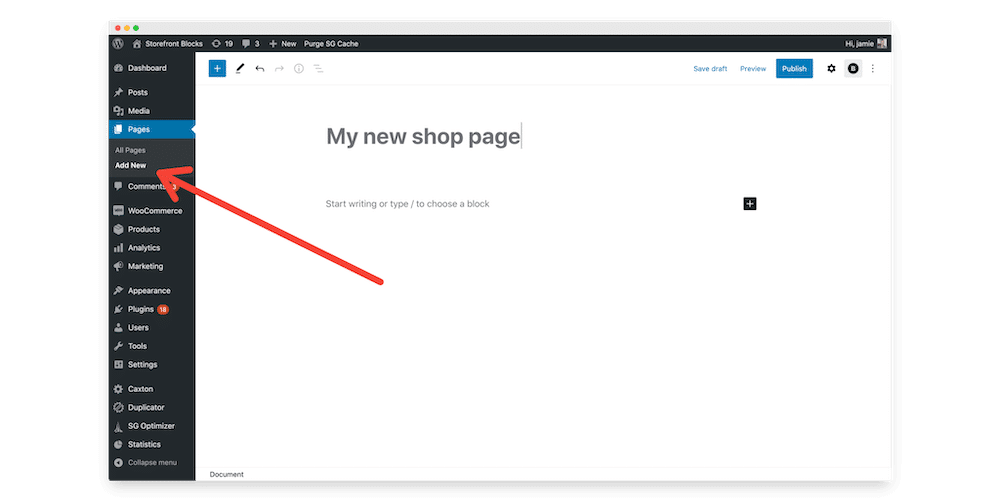
Design and customize your new WooCommerce Shop Page using the Block Editor (Gutenberg)
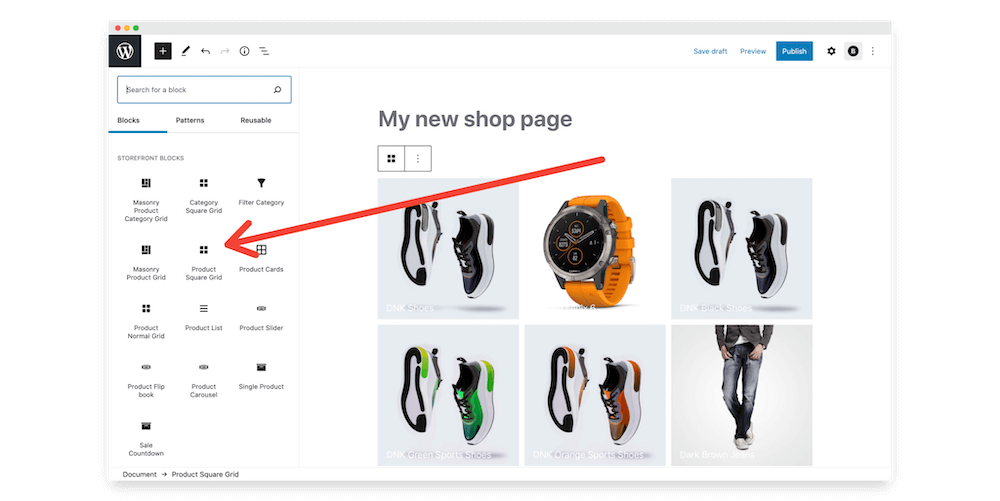
Customize the design and layout of your new WooCommerce Store page using Storefront Blocks and WooCommerce blocks. Bring in relevant sections, categories, and WooCommerce products using the Gutenberg Block Editor. You can also use third-party WordPress Gutenberg Blocks.
We’d recommend using Storefront Blocks and WooCommerce Blocks as great ways of bringing your products and category sections in, but you can also use any Gutenberg Blocks – including WooCommerce shortcodes and widgets – to layout your WooCommerce Shop page any way you like.
Set your new WooCommerce Shop Page as your default Shop Page
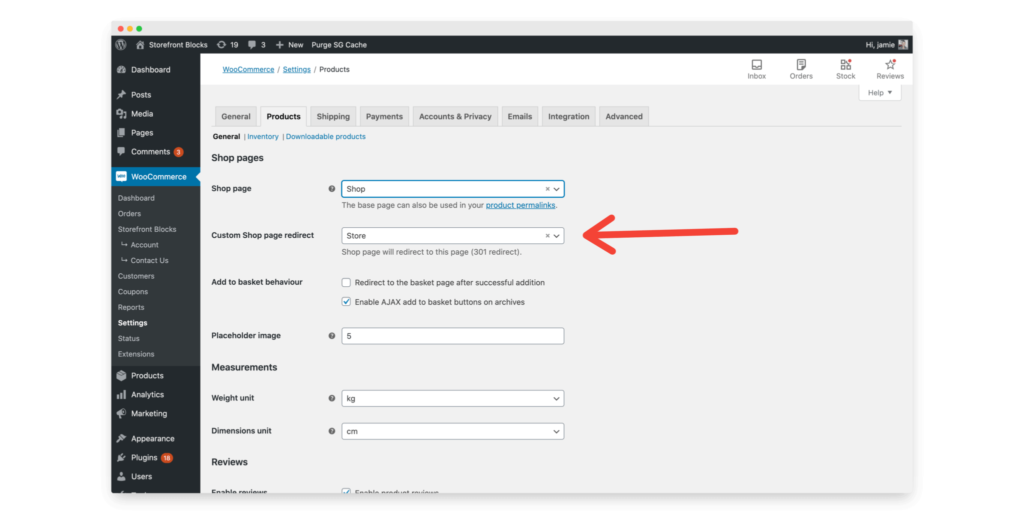
Using the Storefront Blocks plugin, set your new page as your WooCommerce Shop Page by going to your website’s dashboard, then WooCommerce / Settings / Products.
Once there, you’ll see an option to set your new page as the Default WooCommerce Shop Page.
You’ll see a new option, ‘Custom Shop page redirect’.
Then, simply select your new WooCommerce Shop page in the drop-down for ‘custom shop page redirect’.
Add your new WooCommerce Shop page to your menu
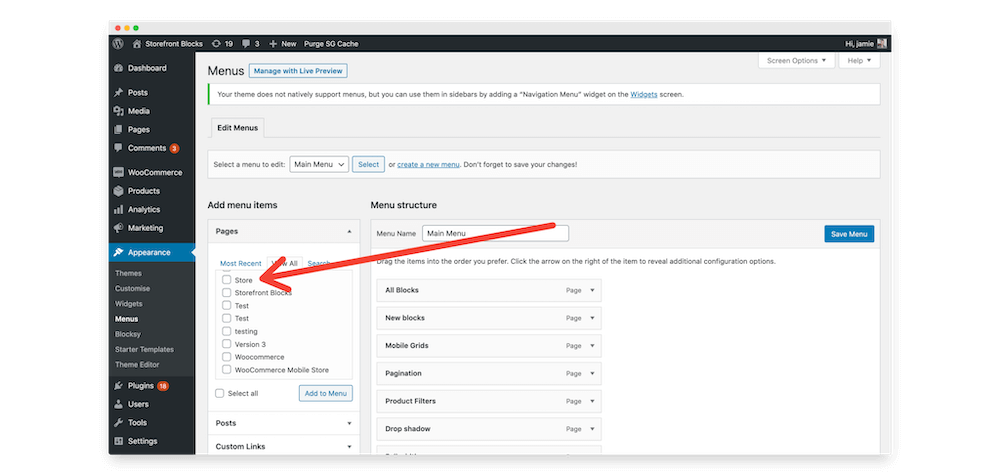
Go to Dashboard / Appearance / Menus and remove your old WooCommerce shop page, replacing it with your new one. If you want your store to be front and centre of your site, you can also set your newly-beautiful shop page as your site’s homepage!
Block Theme Support (FSE)
Here’s a video that shows how to use Storefront Blocks to customize the WooCommerce Shop Pages when using a Block Theme. The important bit starts at 2 mins 50 secs.
Sales-Boosting WooCommerce Shop Page Edits
Customizing the WooCommerce Shop can really increase your sales.
Here are five top tips to make your Shop Page a sales magnet.
Add a Sales Countdown
Sales Countdowns can be a great way to encourage site visitors to take action.
Luckily adding a sales countdown to the WooCommerce Shop Page is now really easy. Just use the Sales Countdown Block from the Storefront Blocks plugin, set your text, and the dates you want to count down to. Here’s a short video.
Add a Flip Book
Great product imagery sells products, and adding a Flip Book to the WooCommerce Shop Page is a great way to really showcase your stock.
Here’s a video that shows the Flip Book Block included within the Storefront Blocks plugin.
Add Customer Reviews to the WooCommerce Shop Page
Adding reviews and testimonials to your WooCommerce Shop Page is a great way to build trust and social proof. WooCommerce now comes with two useful Customer Reviews Blocks that show star ratings and the review text. Here’s a video that shows you how to add Customers Reviews to the WooCommerce Shop Page and also the customization options included in the Review Block.
Zoom in on your Product details
Normally the WooCommerce Shop Page will just show one view of your Product Image. However, some Products, such as those with fine detail, will sell better if you can effectively show different views of your product.
The Product Card Block (part of the Storefront Blocks plugin) has an elegant flip or fade option, so that when your customers hover over an image it will show an alternative product image view.
Add a Product Table to the WooCommerce Shop Page
Product Tables are great because they allow your customers to purchase multiple products all from one screen.
Adding a Product Table to the WooCommerce Shop page is really easy. There are a number of WordPress Plugins that let you create Product Tables, however the Product Table Block shown below is designed specifically for the WordPress Block Builder (Gutenberg) so it’s very easy to use.
Creating a Responsive WooCommerce Shop Page
Creating a great mobile experience for your customers is incredibly important.
The new good news is that Storefront Blocks makes it easy to change the layout for desktop, tablets and mobile phones.
How to Customize the Number of WooCommerce Columns on your Shop Page (for Desktop, Tablets and Mobile Phones)
Here’s a video that shows you how you can change the number of WooCommerce Columns for desktop, tablet and mobile phone.
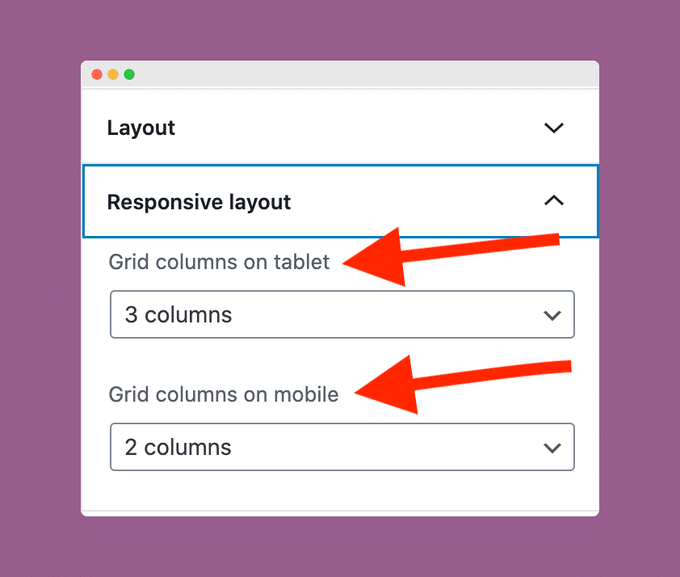
WooCommerce mobile settings
We’ve built easy-to-use options that don’t require any CSS or understanding of code.
Here’s a picture of how the options are set, where you’ll see that you can set different column layouts for tablets and phones.
Storefront Blocks also has a separate setting where you set the desktop layout.
Frequently Asked Questions
No, you can edit the WooCommerce Shop just using the WordPress Block Builder Editor and the Storefront Blocks plugin.
There are big SEO benefits if you edit the WooCommerce Shop Page. You’ll be able to add far more keywords to your main shop page.
The WooCommerce Shop page is dynamically created and normally you can’t edit it. The Storefront Blocks plugin makes it possible to Edit and Customize the WooCommerce Shop Page.
Conclusion
Anyone, regardless of their technical knowledge, can now easily create a customized WooCommerce Shop page in just a few minutes.
You don’t need to touch a line of code.
All you need to do is use the WordPress Block Builder Editor (Gutenberg), the WooCommerce Blocks plugin, and the Storefront Blocks plugin, and follow the simple steps above.
Your WooCommerce Shop Page will be better designed, it will have much better SEO (search engine optimisation) and you’ll get more sales.
Comments
29 responses to “How to customize the WooCommerce Shop page”
This worked great, thanks!
I didn’t see a WooCommerce button in the sidebar. Any idea?
Did you install WooCommerce
I don’t see the WooCommerce button either.
Do we have to have the paid version of both products?
Hi, you’ll just need pagebuilder pro
Thanks you so much,, worth video for me 🙂
Hi there, I love this page builder, and the tutorial is very well done – I just have one problem, I cannot find the woocommerce button in the sidebar for me to add the products in?? Can you help me with this – thanks!
Hi Megan, are you using the pro version?
Thank you so much, with the help of your tips and tricks I am able to make a brand new shop page for my blog.
Does the free version have the same functionality you are showing us in the Video?
amazing tutorial
thank you for this useful information,
Looks great. Now I just need a way I can get my current news section to show on Storefront.
Hi Andrew,
You could use the Posts Grid Block that comes with our Caxton plugin https://wordpress.org/plugins/caxton/
jamie
There is something more straightforward than creating a new page and adding a filter to change the shop page link..
You can override the woocommerce_content function and add a condition if it’s the shop then display the post_content (which will be your gutenberg page) instead of displaying the product loop
Hi Jamie, This looks exactly what I’ve been looking for to drastically improve Woocommerce! I’m little confused though, could you kindly tell me how Storefront Plugin blends with Woocommerce, like deep into the mechanics, ie, CHECKOUT PAGE, MY ACCOUNT, DOWNLOADS etc……. I imagine we still use this as the ‘Operation Hub’ and StoreFront Plugin, is for fantastic, fluid design of SHOP PAGE & PRODUCTS only etc…… ?
Thanks so much, Au
Hi Au,
Everything else stays the same 🙂 This way is very lightweight and doesn’t effect anything else.
make sense?
jamie
Can’t fine the notes particularly the list of blocks you used..
I can find the list you refer to in the video. I need a list of the blocks you used. Video is just to fast.
Hi Robert,
I used Storefront Blocks, Caxton layouts, and a testimonials block.
jamie
Hi – I am not really sure how the default Woocommerce shop page works – if I click Edit it seems to be pretty blank but there must be some smarts behind it to give me my default results (that I want to improve) – can I just edit the existing “Shop” page and add your various blocks to it or is that going to cause confusion/errors.
Hi Peter,
Yes that’s correct you can’t directly edit the woocommerce shop page.
But if you follow the 4 steps at the top of the tutorial (and use storefront blocks) you’ll be able to 🙂
let me know if that works for you 🙂
jamie
I love this tutorial. Thank you so much. I don’t see a Shop Page redirect option in my WooCommerce>Settings>Products page. Is that something that is added once I activate Storefront Blocks and WooCommerce Blocks?
Hi, yes that option is built into the Storefront Blocks plugin 🙂
Thanks! I’m sold on purchasing it now. That’s the missing piece I was looking for for my site…I was trying to avoid coding on the backend as much as possible. Are there any early Black Friday sales?
Hi , if you email me at jamie@pootlepress.com i’ll send something over 🙂
Hi Jamie,
I sell custom engraved jewelry. Standard is silver and gold. Optional is personalized engraving on the back. So there are 4 products available. Standard silver and gold and personalized on the back. I would like to show only these four on a Shop page.
1. Can I make a separate shop page for the 4 options of each jewelry design (in silver or gold or silver engraved on back or gold engraved on back)?
2. How do I add the option for the purchaser to add their characters of the back engraving option?
Thanks, Vernon
The video tutorial is detailed and useful. Everything works very well on my shop page. Thanks!
what will be on page #2 of the shop page, will i have there all those content or just products?