
ChatGPT might be the best WordPress page builder I’ve ever used.
Which sounds ridiculous. But I’m not sure it is.
Last night, I rebuilt my wife’s yoga studio website using ChatGPT and WordPress.
The reason it worked so well is speed of creative iteration.
Inside one chat, I can work with something that feels like a designer, front-end developer, and design system creator at the same time.
I can explore visual directions, reject them, refine them, turn them into systems, and then generate the page.
All incredibly quickly.
I also had a bit of a eureka moment: instead of fighting the fact that AI is incredibly good at generating clean front-end code, I leant into it.
That made the whole process feel more creative. And in my experience, it led to much better results.
Here’s the workflow I’ve settled on.
Step 1: Start with mockups, not code
Don’t start by asking ChatGPT to build a page.
Start by asking it to design one.
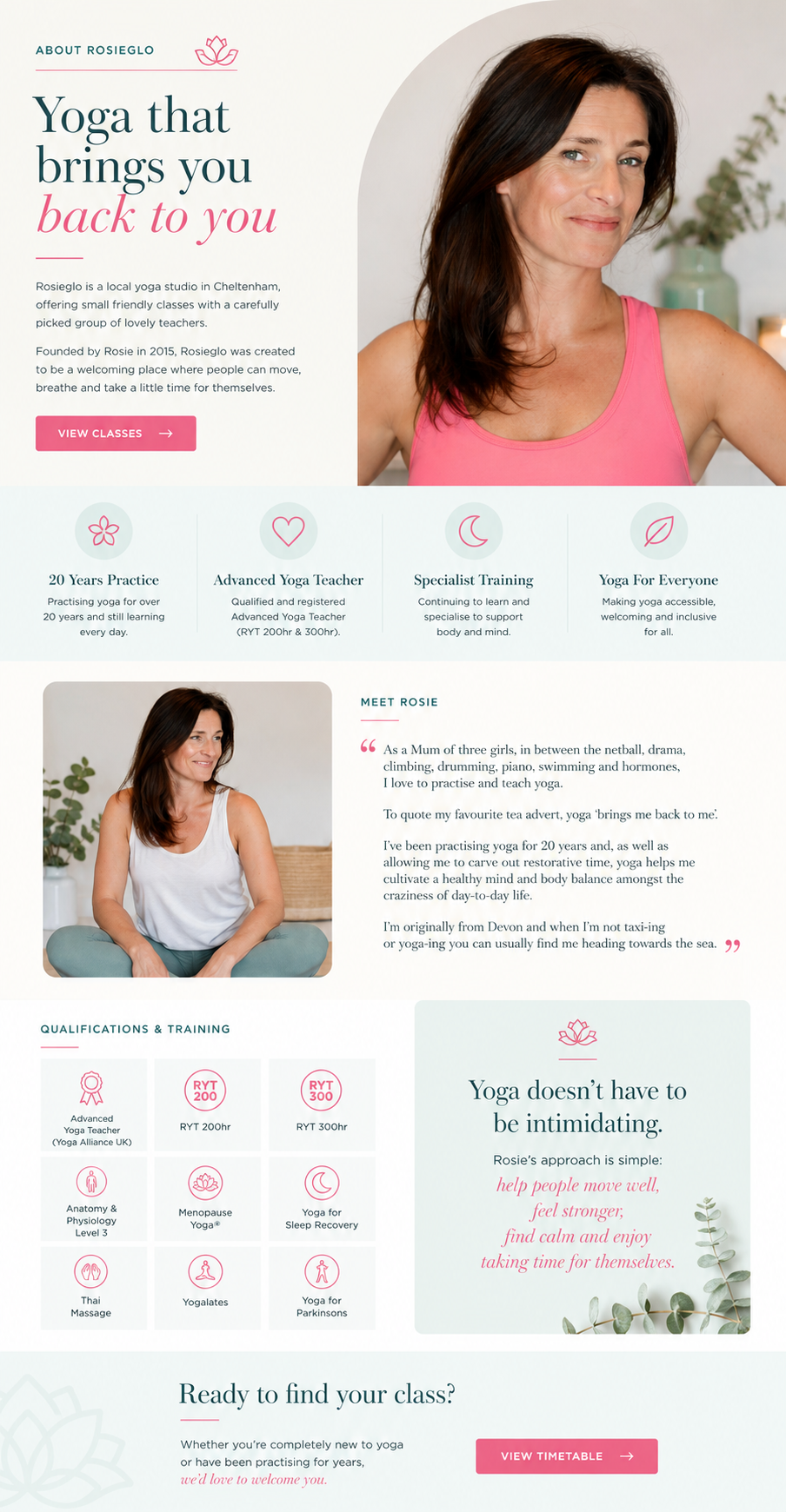
ChatGPT is incredibly good at creating mockups using real content. I simply fed it the existing copy from the website and asked it to create a new design around that content.
When working on the Rosieglo Yoga website, I began with prompts like:
Create three homepage concepts for a modern yoga studio in Cheltenham. Use soft greens, teal and white. The site should feel welcoming, calm and premium.
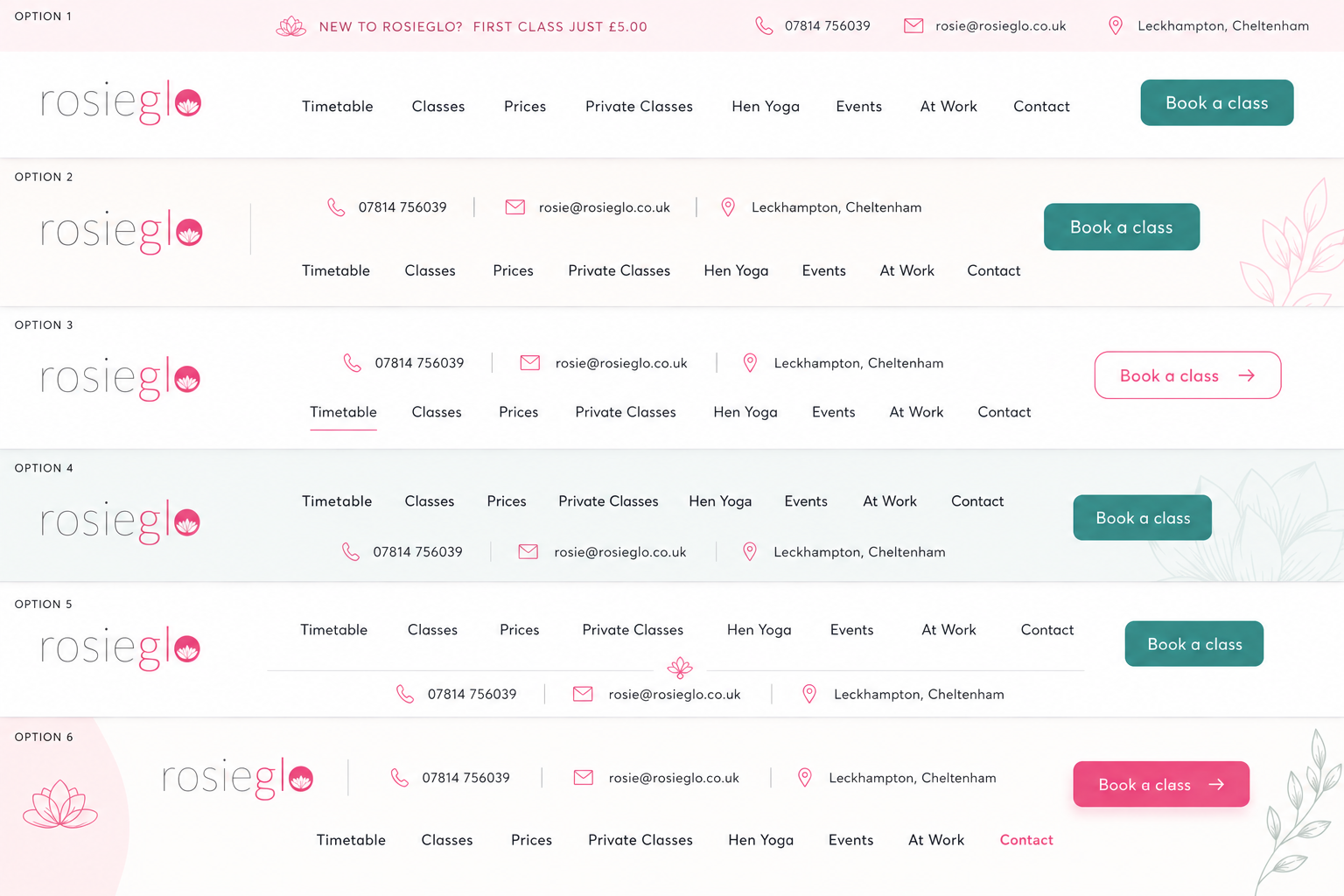
ChatGPT produced several completely different directions.
One leaned heavily on large photography.
One focused on elegant typography.
One used curved image treatments and softer, more organic layouts.
At this stage, we’re not building anything.
We’re acting as creative director.
The goal is simply to explore ideas and discover a visual direction that feels right.
I find it useful to keep pushing.
“Show me another version.”
“Make it more elegant.”
“Reduce the pink.”
“Make it feel more premium.”
“Show me a completely different direction.”
Once you’ve found a direction you love, then you move on.
Step 2: Turn the winning mockup into a design system
Once we’d settled on a visual direction for Rosieglo, I asked ChatGPT:
Create a global CSS framework based on this design.
This generated a complete design system:
- Colour variables
- Typography
- Buttons
- Cards
- Section layouts
- Responsive rules
- Reusable components
The result was a single CSS file that became the foundation for the entire site.
This is important because consistency doesn’t happen by accident.
Once the design system exists, every future page automatically feels like part of the same website.
Step 3: Add the CSS globally
The next step is adding the CSS to WordPress.
Typically I add it via:
Appearance → Editor → Styles → Additional CSS
Now every page can use the same design language.
Instead of generating a new collection of styles for every page, ChatGPT can simply build using the existing design system.
That’s a much cleaner approach.
Step 4: Create reusable components
At this point I ask ChatGPT to identify the reusable patterns.
Things like:
- Hero sections
- Section headings
- Feature cards
- Testimonials
- Pricing cards
- Call-to-action banners
- Contact forms
These become the building blocks for the site.
Just like blocks in WordPress, but generated from the design we’ve already approved.
For the Rosieglo site, we ended up with a handful of reusable patterns that appeared across almost every page. Once those existed, building new pages became dramatically faster.
Step 5: Build new pages
Because the design system already exists, I can create new pages very quickly.
For example:
Create a Hen Yoga page using the existing Rosieglo design system.
Or:
Create a Contact page using the existing Rosieglo design system.
Or:
Create a Private Classes page using the existing Rosieglo design system.
Because ChatGPT already understands the visual language, the pages feel cohesive.
You’re no longer creating pages from scratch.
You’re extending a system.
This feels similar to working with a professional design team.
The difference is that the designer, front-end developer and design system engineer are all sitting inside the same chat window.
Step 6: Generate the HTML
Once I’m happy with the layout, I ask ChatGPT:
Turn this into clean HTML using the existing CSS classes.
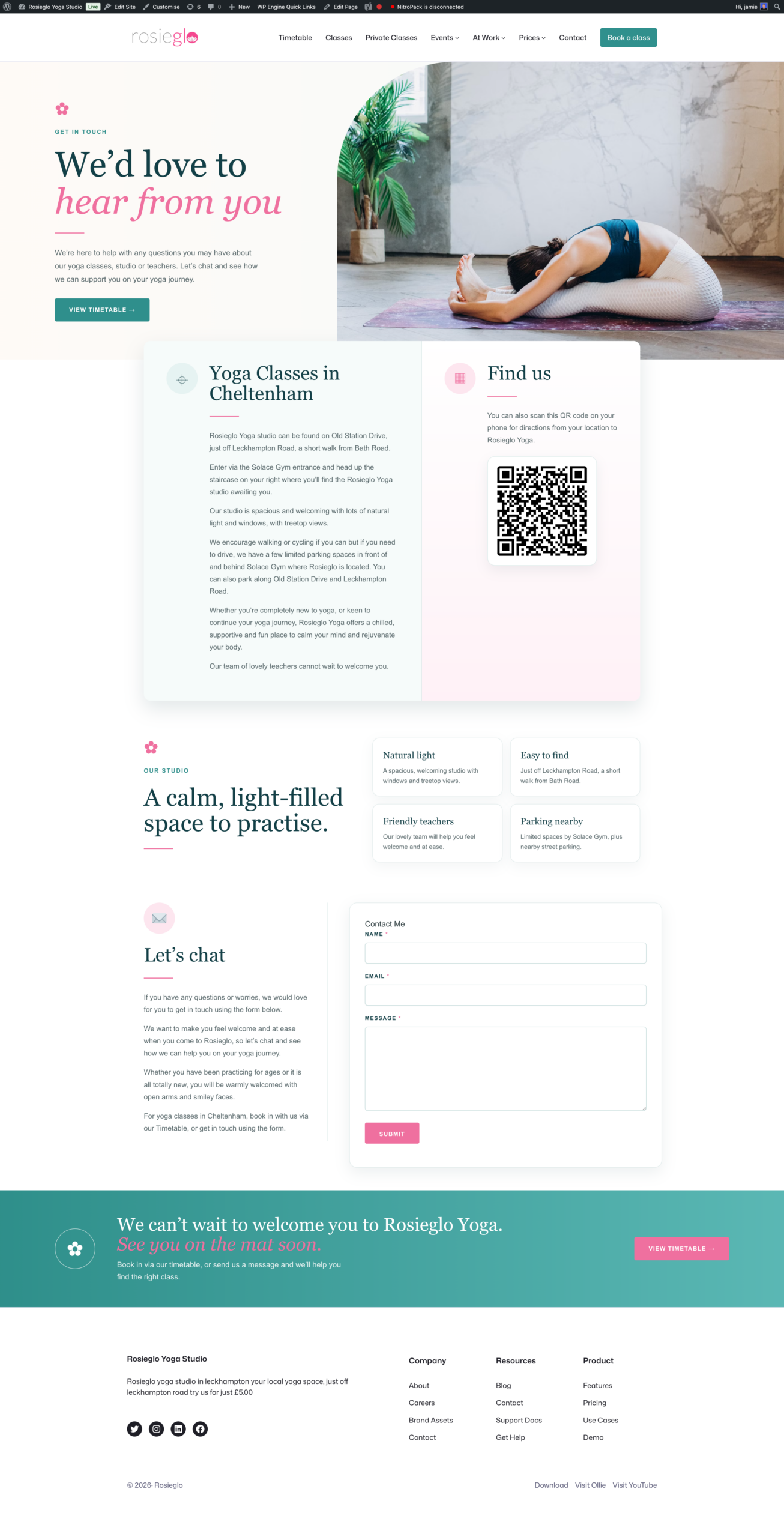
The resulting HTML was good.
Responsive structure.
Good visual hierarchy.
Sensible spacing.
Clean markup.
If you run into issues use this exact prompt 👇
Recreate this screenshot as HTML for a WordPress Gutenberg Custom HTML block.

Important requirements:

Use one root wrapper with a unique CSS class.
Include one scoped <style> block inside the HTML.
Build the layout with clean HTML and CSS.
Use Gutenberg static inner block markup for every editable heading, paragraph, button and image.
Every visible text element must be editable visually inside Gutenberg.
Every image must be replaceable through the WordPress Media Library.
Do not return normal serialized top-level Gutenberg blocks.
The entire design must be pasteable into one Custom HTML block.
Make it full width and responsive.
Match the screenshot as closely as possible.
Step 7: Add it to WordPress
Inside WordPress, the process is straightforward.
Add a Custom HTML block.
Paste in the generated HTML.
Wrap that HTML block inside a Group block.
Set the Group block to Full Width.
Deselect the inner blocks toggle from Content Width.
Then change the page template to Full Width, No Title.
I’ve found this works particularly well with Ollie and the default Twenty Twenty-Five theme.
The result is a fully custom page sitting comfortably inside WordPress.
Step 8: Make the content editable
At this point you’re probably thinking: this looks great, but how are my clients supposed to edit it if it’s all HTML?
AI is incredibly good at generating HTML.
The problem is that HTML isn’t particularly friendly for normal users.
Eventually someone wants to:
- Change a heading
- Update a button
- Replace an image
- Edit some copy
That’s exactly the problem my Vibe Code plugin solves – coming soon to WordPress.org – Take it for a spin here.
Vibe Code adds a visual editing layer on top of HTML inside WordPress.
Instead of diving into markup, users can edit text, images, buttons, links and other content directly.
The layout remains intact.
The content becomes accessible.
That turns AI-generated HTML from an interesting experiment into something practical.
Conclusion
I’m not suggesting page builders disappear.
They’re still incredibly useful, particularly when you need complex layouts, reusable templates, dynamic content and large-scale site management.
But I do think something interesting is happening.
For years we’ve built pages by dragging components onto a canvas.
Now we’re increasingly describing what we want and having the page generated for us.
The workflow I increasingly find myself using looks like this:
Mockups → Design System → Components → HTML → WordPress → Vibe Code
What’s fascinating is that every stage happens through conversation.
You describe what you want.
You refine it.
You explore alternatives.
You choose a direction.
You build.
The result doesn’t feel like using a page builder.
It feels like collaborating with a designer and front-end developer who happen to live inside a chat window.
And for certain kinds of websites, that might just be the best page builder I’ve ever used.
Addendum: making AI-generated HTML easier to edit
One small lesson from this experiment: if you want to edit the page afterwards using my Vibe Code plugin, it helps to give ChatGPT a little structure.
Here’s the prompt I now use:
Rules:

- Use HTML and CSS only.
- Use one root wrapper with a unique class.
- Place all CSS inside one <style> block.
- Use global theme styles wherever possible.
- Only add custom CSS when required for layout or visual effects.
- Prefix all custom CSS selectors with the root wrapper class.
- Do not use JavaScript.
- Do not set font families unless specifically requested.
- Do not override global heading, paragraph, link, or button styles unless specifically requested.
- Put all visible text inside h1–h6, p, li, span, a, or button elements.
- Do not place visible text directly inside divs.
- Use divs for layout only.
- Add meaningful alt text to every image.
- If a hero section requires a background image, add it using background-image: url(...) in the CSS on a matching class.
- Keep the HTML semantic, clean, and easy to edit.


Leave a Reply