
Eight things that make a WooCommerce store sell more: a free delivery progress bar, product bundles, bulk discounts, low stock notices, gift wrap, trust signals under the buy button, back-in-stock alerts and a weekly sales report.
Every one of them took minutes. None of them needed a plugin. I described what I wanted to Claude, watched it build the thing, and checked it worked.
This article is the full list: what each one is, what it does for your takings, a photo of it working, and — at the end of every section — the exact prompt to paste in to get it onto your own shop.
Want to poke at it before you read? Open a throwaway copy of the whole shop in your browser. It builds itself in about a minute — nothing to install, nothing to sign up for, and closing the tab throws it away.
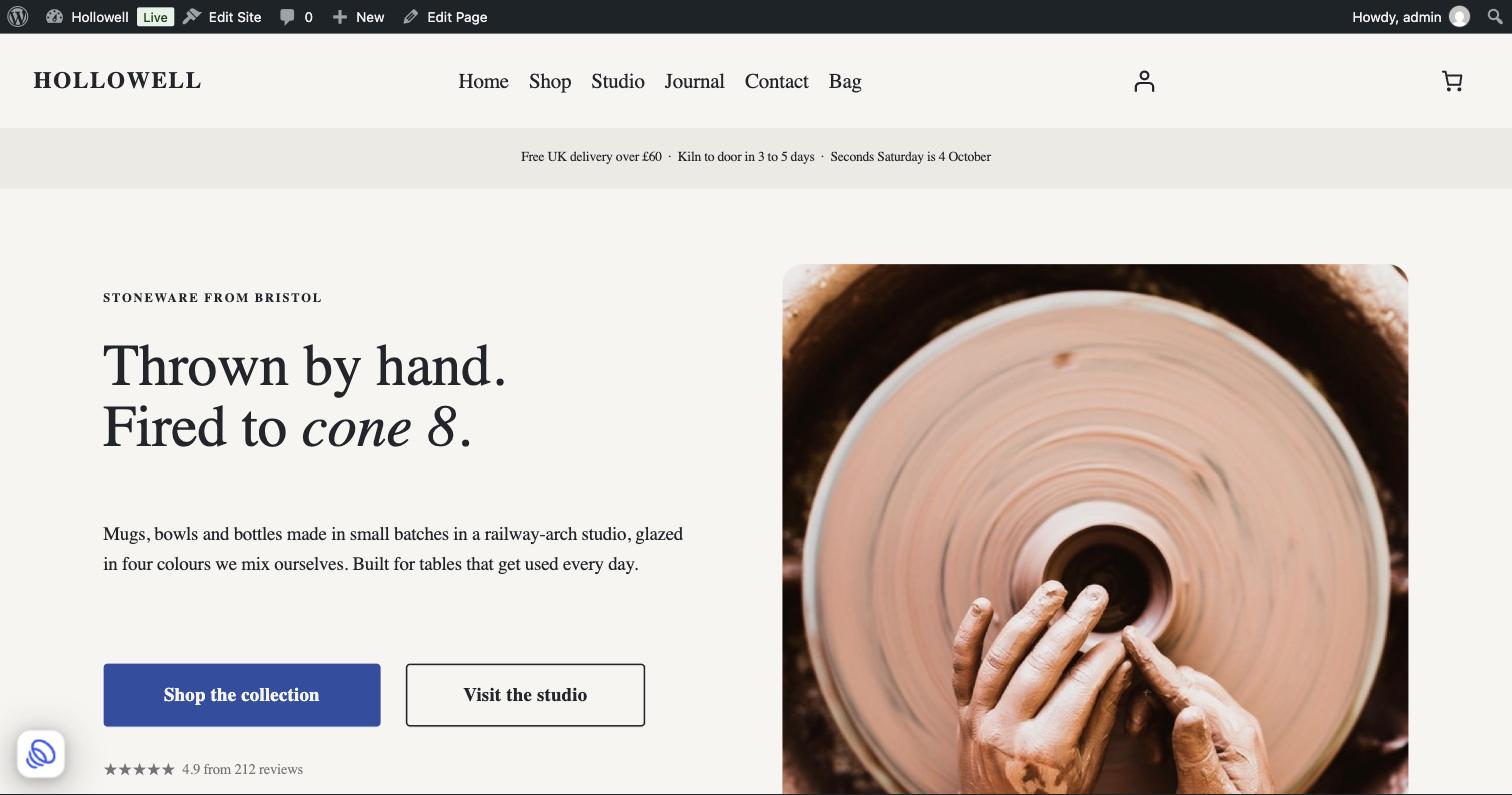
The shop is Hollowell, my demo store: twelve pieces of handmade stoneware, WooCommerce, Twenty Twenty-Five, hosted on WordPress.com. Everything below is live on it right now, built through the WordPress.com MCP and the WooCommerce APIs that already ship with Woo. No new plugins, no code I had to write myself.
1. Free delivery progress bar: the simplest upsell on your shop
Free delivery over £50 only works if people know how close they are.
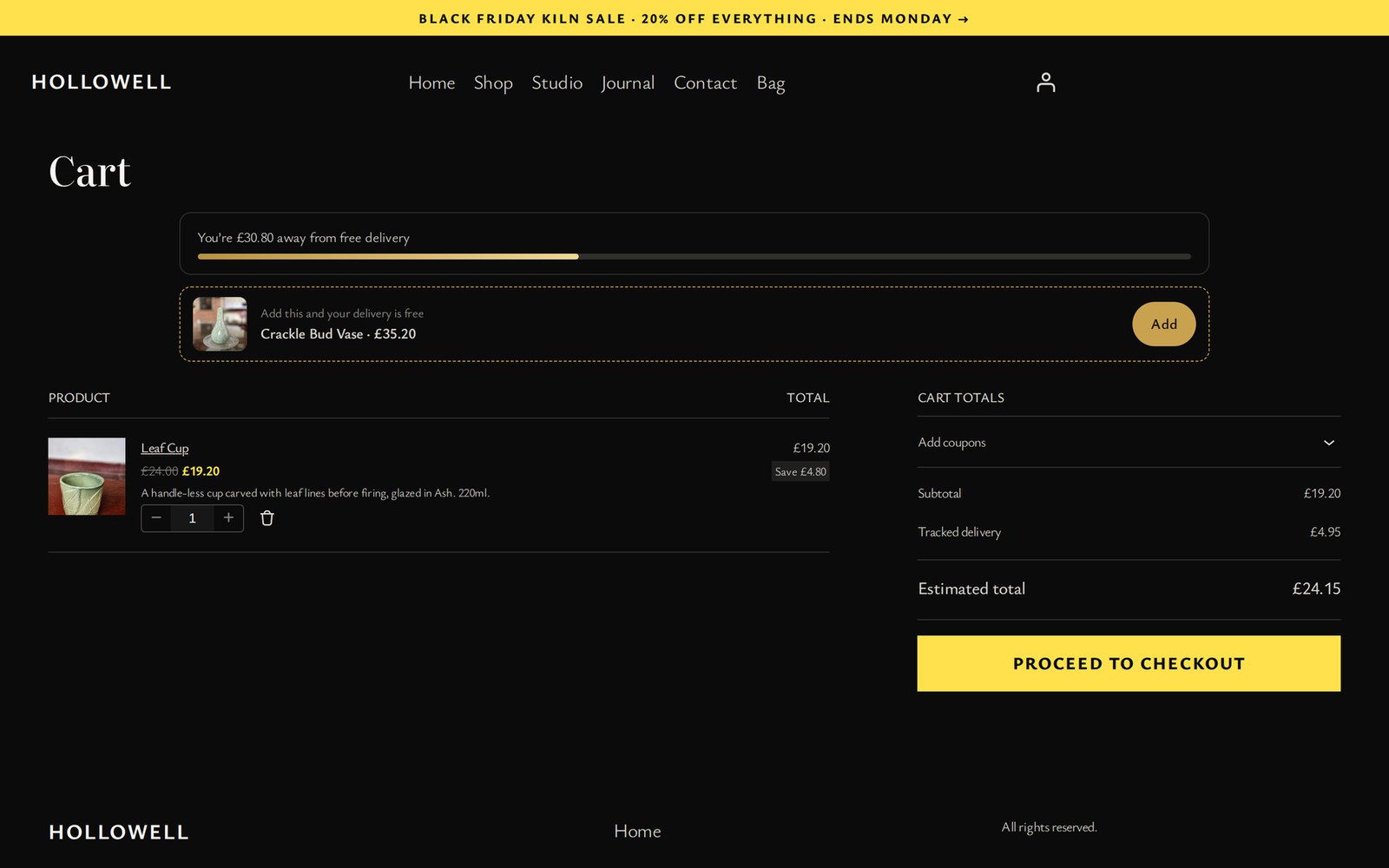
The bar sits on every product page and at the top of the basket. When you’re short, it doesn’t just say so: it picks the cheapest piece in stock that would tip you over, shows it with a photo and price, and adds it in one click. When you cross £50 the bar turns green and the delivery line goes from £4.95 to FREE.
How it was built. Claude added a UK shipping zone in WooCommerce with tracked delivery at £4.95 and free delivery over £50, both through the Woo REST API. The bar reads the live basket from the WooCommerce Store API, so the number is the real subtotal after any discount, not a guess. The suggestion is a filtered Store API product query.
What it would do for your shop. This is the one I’d add first to any store with a delivery threshold. It turns “delivery is £4.95” from a reason to abandon into a reason to add one more thing, and it does the arithmetic for the shopper.
Use this prompt.
On my WooCommerce shop, add a free-delivery progress bar to every product page and the top of the cart. Read the live cart from the WooCommerce Store API so the total is the real subtotal after any discount. When the customer is under my free-delivery threshold, show how much is left and suggest the cheapest in-stock product that would take them over it, with its photo and price and a one-click add button. When they are over, turn the bar green and say delivery is free. Set up the UK shipping zone and the threshold in WooCommerce for me as well. No new plugins: put the CSS and JS in one synced pattern referenced from my footer template.2. Product bundles: cross-sell the matching items on every product page
The fastest way to a bigger basket is showing people the pieces that go with the one they’re already looking at.
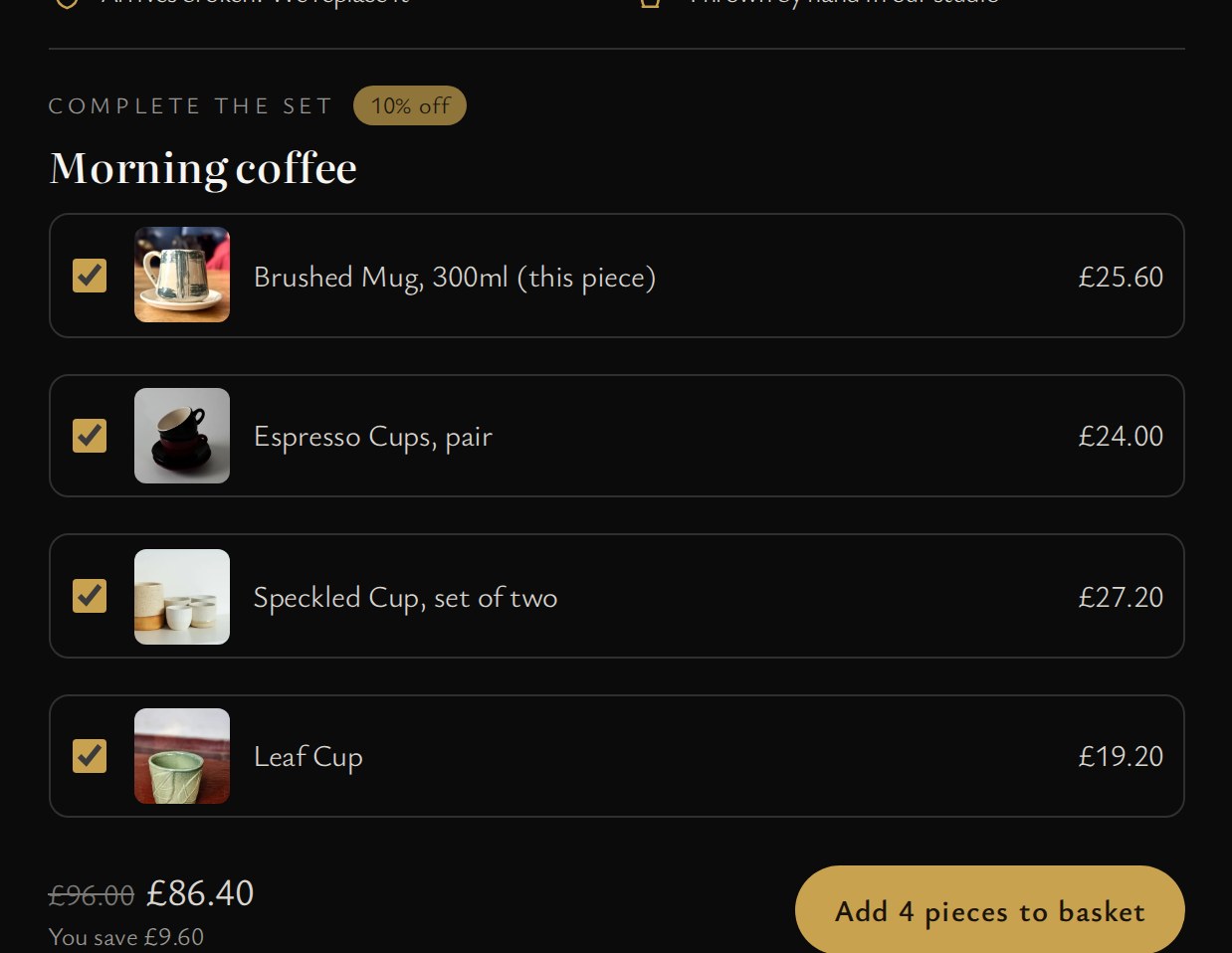
Every product that belongs to a set (Hollowell has three: The supper table, Morning coffee, Shelf and sill) shows the whole set underneath the buy box, each piece ticked by default, with a running total. Untick what you don’t want. Sold-out pieces are greyed out. One button adds the lot and the 10% comes off in the basket.
How it was built. Claude made one WooCommerce coupon per set, each restricted to that set’s product IDs, then wrote a little front-end that adds the chosen pieces through the Store API and applies the right coupon. The discount is a real Woo coupon, so it shows in the basket, at checkout and in the order.
What it would do for your shop. Anyone selling things that belong together (crockery, skincare, coffee kit, prints) gets a bigger average order without a bundle plugin or a second product. It also does the merchandising work for you: the shopper sees the collection, not one lonely mug.
Use this prompt.
Group my products into sets of things that go together. On every product page in a set, show the whole set under the buy box: tick boxes, photos, prices and a running total, everything ticked by default, sold-out pieces greyed out. One button adds the ticked items and takes 10% off. Make the discount a real WooCommerce coupon per set, restricted to that set's product IDs, so it shows in the cart, at checkout and on the order, and add the items through the Store API. No new plugins.3. Bulk discounts: get customers buying four or six instead of one
Quantity discounts usually hide in the small print. These sit next to the quantity box and light up as you change it.
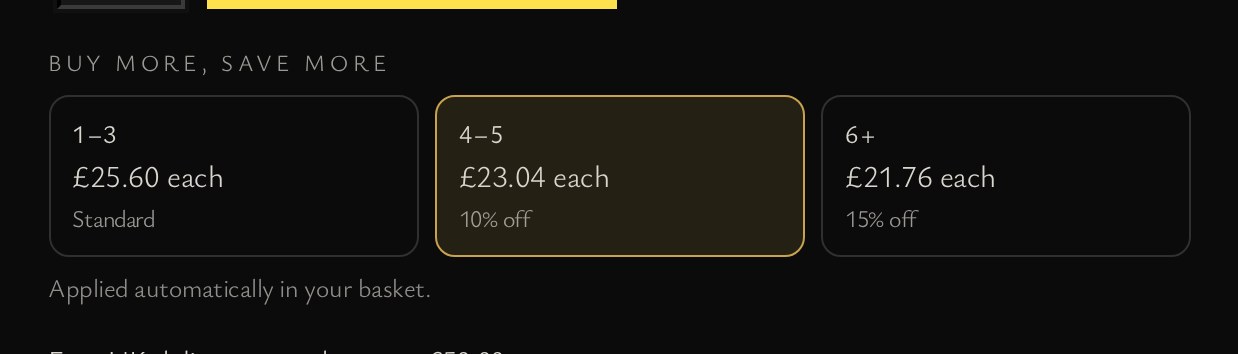
Four or more of a piece is 10% off, six or more is 15%. The tiles show the per-item price at each tier and highlight the one you’re on, so the saving is visible before the decision, not after it.
How it was built. Claude created a pair of WooCommerce coupons per eligible product (a 10% and a 15%), each restricted to that product, so the discount only ever touches the line that earned it. The front end watches the quantity box and applies whichever coupon the basket qualifies for. On the Supper Plate, where the page is that drag-the-plates table I built earlier, the tiers follow the plates you put down.
What it would do for your shop. It’s the cheapest way to lift order value on anything people buy in multiples. Even if nobody takes the tier, the £24.48 sitting next to £28.80 makes the single price feel fair.
Use this prompt.
Add quantity discount tiers to my WooCommerce products: 4 or more is 10% off, 6 or more is 15%. Show the tiers as tiles beside the quantity selector with the per-item price at each one, and highlight the tier the customer is on as they change the quantity. Build the discounts as WooCommerce coupons restricted to each product, so a discount only ever touches the line that earned it, and have the front end apply whichever coupon the cart qualifies for. No new plugins.4. Low stock notices: real urgency, no fake countdown timers
I can’t stand fake countdown timers. This one just tells you what’s in the cupboard.

When stock drops to three or fewer you get a glowing ember and “Only 3 left from this firing”, plus the date of the next kiln firing. At one it reads “Last one from this firing”. Above three, nothing at all.
How it was built. Claude turned on stock tracking for the twelve pieces, set WooCommerce’s low stock threshold to three, and read low_stock_remaining from the Store API, which Woo only fills in when stock is genuinely low. The wording and the firing date are the only invented bits.
What it would do for your shop. For anything made in batches (or anything genuinely limited), this is honest urgency. It borrows the language of the workshop rather than the language of a dodgy landing page, and it costs nothing but accurate stock numbers.
Use this prompt.
Turn on stock management for my products, set WooCommerce's low stock threshold to 3, and add an honest low-stock line to the product page that reads low_stock_remaining from the Store API, so it only ever appears when stock is genuinely low. "Only 3 left" above one, "Last one" at one, nothing at all above the threshold. Hide Woo's own stock line so the page does not say it twice. No fake countdowns, no invented numbers, no new plugins.5. Gift wrap and gift messages: a paid add-on gift buyers want
A tick box turns any piece into a present.
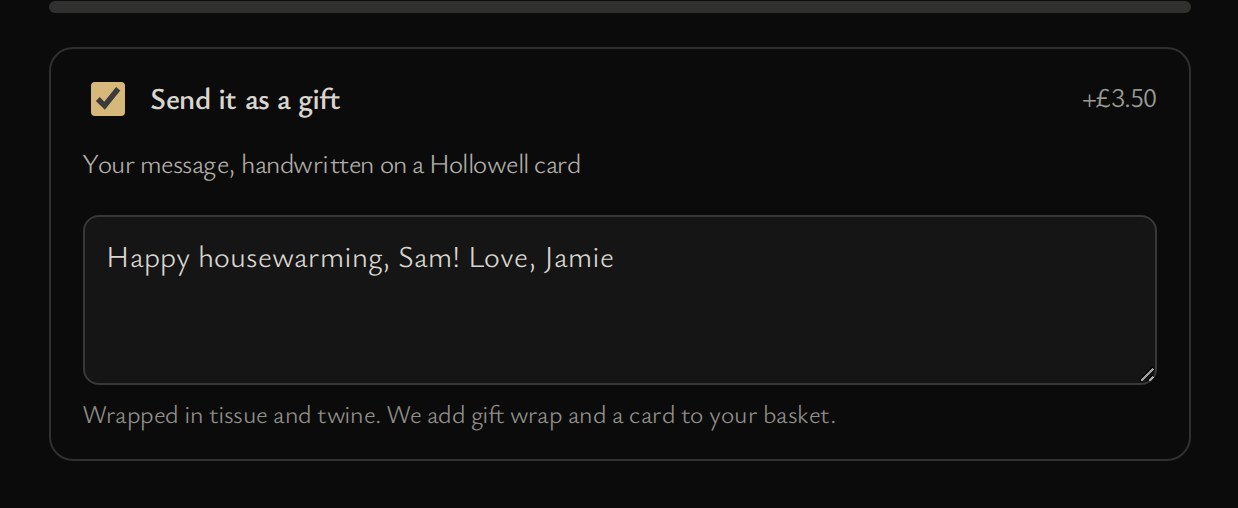
Tick it, write your message, add to basket. Gift wrap and a handwritten card (£3.50) go into the basket with the piece, and the message travels to the order, so it’s sitting in front of you when you pack it.
How it was built. The wrap is a normal WooCommerce product, hidden from the catalogue. Claude adds it through the Store API when the box is ticked, then writes the message into the order note on the block checkout, and shows a banner there so the shopper can see it went through.
What it would do for your shop. Gift buyers spend more and are less price sensitive, and they need to know the recipient won’t see a price. This asks for one tick and gives you £3.50 plus a better chance of the order. For a maker, the handwritten card is also the cheapest marketing you’ll ever do.
Use this prompt.
Add gift mode to my WooCommerce product pages: a tick box that opens a gift message box. When it is ticked, add my gift wrap product to the cart alongside the item and write the customer's message into the order note on the block checkout so it lands on the order, with a banner at checkout confirming it went through. Create the gift wrap as a normal product hidden from the catalogue. No new plugins.6. Delivery countdown and trust signals: answer the doubts at the buy button
People don’t abandon because your photography is bad. They abandon because they don’t know when it turns up or what happens if it smashes.

Four lines under Add to cart: a live dispatch cut-off counting down to 2pm with the arrival date worked out, free 30-day returns, a breakage promise, and who made it.
How it was built. No plugin and no server work: the cut-off is worked out in the browser in London time, skipping weekends, and the arrival date is two working days after dispatch. The other three lines are plain text you’d change in a minute.
What it would do for your shop. It’s the least glamorous item on this list and probably the highest return. “Order within 3h 12m, arrives Friday” is a reason to buy now instead of later, and “arrives broken, we replace it” removes the fear that stops people buying ceramics, glass or anything fragile online.
Use this prompt.
Under the Add to cart button on my product pages, add four reassurance lines: a live countdown to my dispatch cut-off with the arrival date worked out (my timezone, skipping weekends), my returns policy, a damage-in-transit promise, and who makes the product. Work the countdown out in the browser so there is no server work and nothing for a cache to get wrong. No new plugins.7. Back-in-stock email alerts: capture the customer instead of losing them
A sold-out product page is the only page on your shop where you know exactly what the visitor wants.
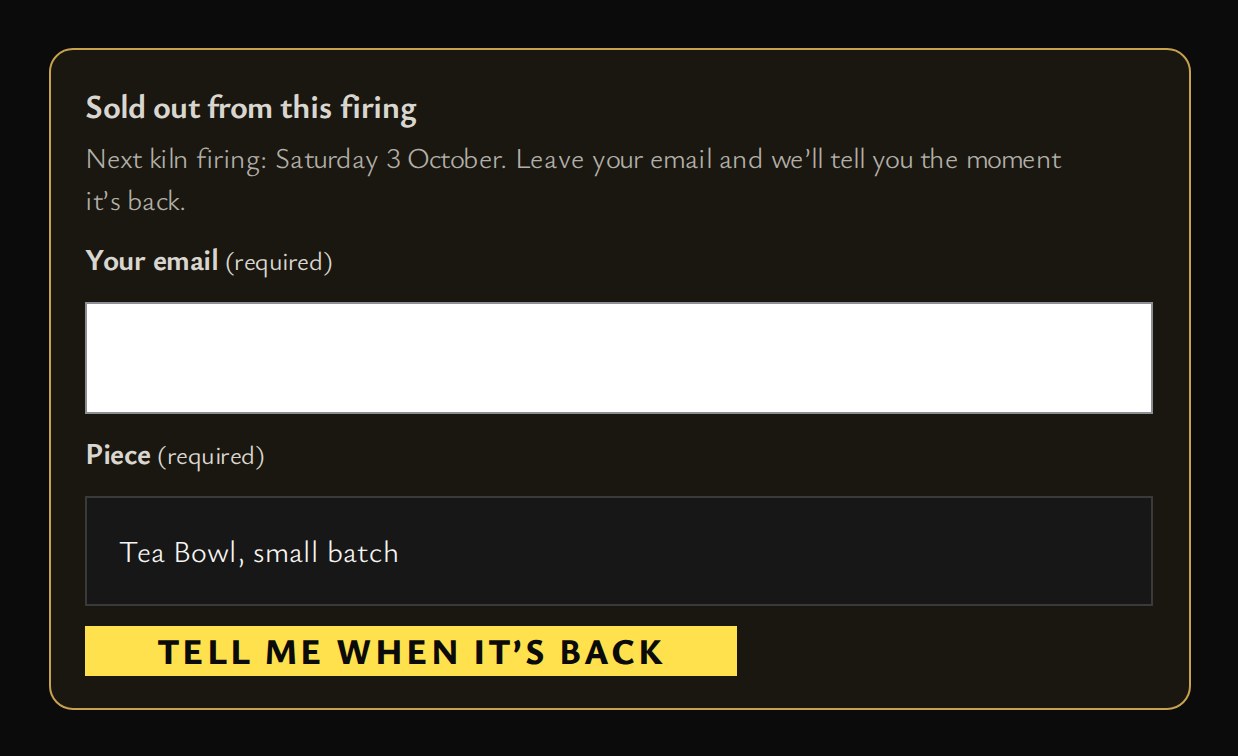
When a piece is out of stock the Add to cart button is replaced with “Back in the next firing” and a single email box. Leave your address and you get a note when it comes out of the kiln. It sits on the page, above the fold, not buried in a link.
How it was built. No waitlist plugin. Claude put a Jetpack contact form in the footer template (Jetpack forms come with WordPress.com), then moved it into the product page with a few lines of JavaScript whenever Woo reports the piece as out of stock. Sign-ups land in Feedback in wp-admin with the piece’s name attached, ready to export to a mailing list.
What it would do for your shop. Every out-of-stock page is currently leaking demand you never hear about. This catches it, and it tells you what to make more of. For a maker with a kiln, a small batch or a seasonal line, that list is your next production run, pre-sold.
Use this prompt.
When a product on my WooCommerce shop is out of stock, replace the Add to cart button with a short back-in-stock sign-up: one email field and a button, on the page above the fold. Use a Jetpack contact form placed in my footer template and move it into the product page with JavaScript whenever Woo reports the product as out of stock, passing the product name through so I can see what people are waiting for. Sign-ups should land in Feedback in wp-admin. No new plugins.8. An automated weekly sales report: what moved, and what to fix
The other seven live on the shop. This one lives in Claude, and it’s the one I’d miss most.
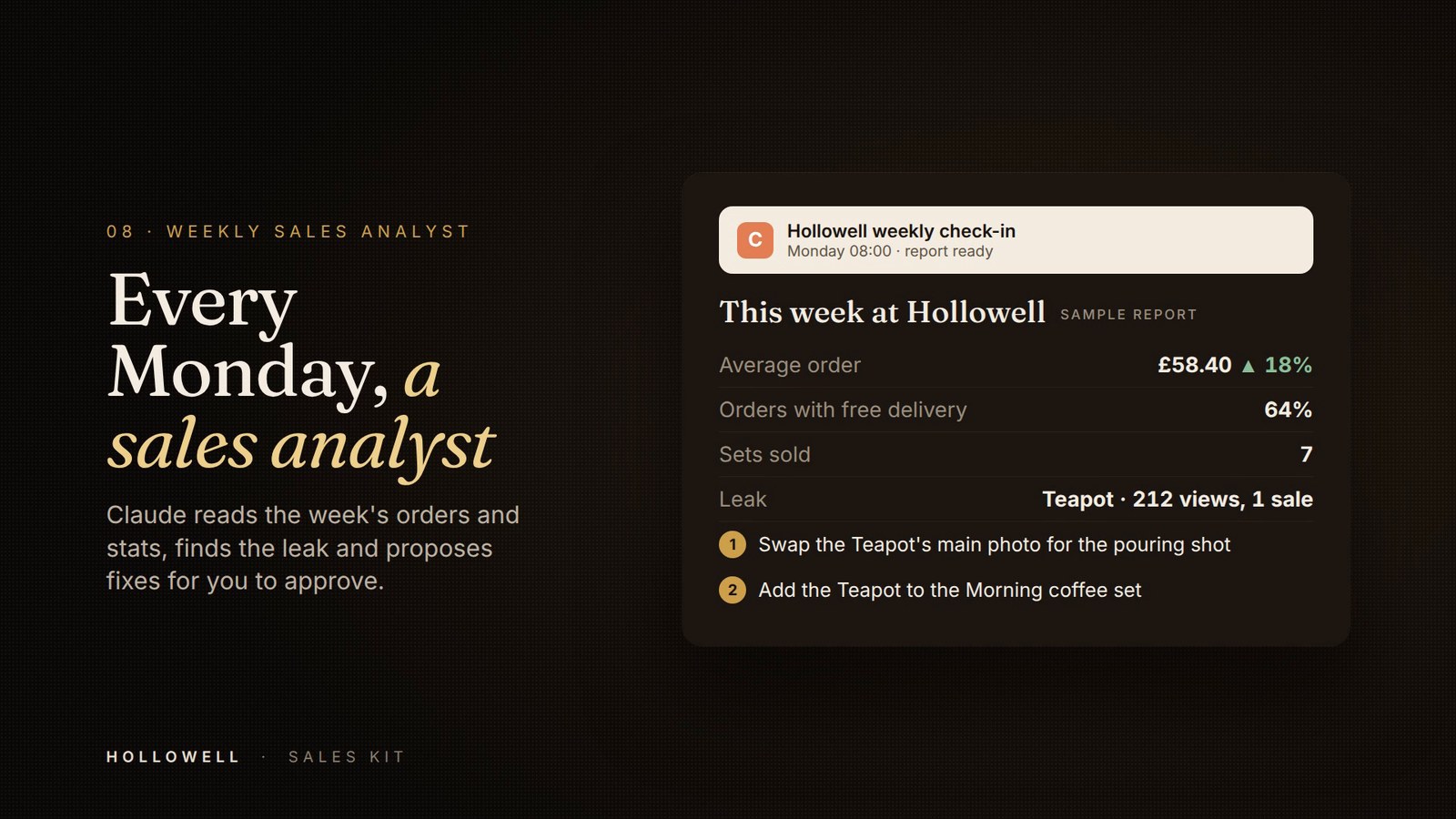
Every Monday morning a scheduled task wakes Claude up, reads the week’s orders and stats, and writes me a short report: what sold, what the average basket did, which of the seven offers actually fired, what’s nearly out of stock, and three specific things to change this week. Not a dashboard I have to remember to look at: a note that arrives.
How it was built. A scheduled task with a standing brief. Each run pulls orders and products from the WooCommerce REST API and traffic from Jetpack Stats, compares the week with the one before, and writes the findings up. Because it’s Claude rather than a report, it can also make the change it recommends: adjust a threshold, swap a set, restock a piece, and tell me what it did.
What it would do for your shop. Most small shops never read their analytics, because reading them is a job. This inverts it: the analysis comes to you, in English, with a short list of actions attached. It also gives every other feature on this list a feedback loop, so the free delivery threshold and the tier prices stop being guesses.
Use this prompt.
Set up a scheduled task that runs every Monday morning, reads last week's WooCommerce orders and products and my site's traffic stats, compares them with the week before, and writes me a short plain-English report: revenue, orders, average order value, best sellers, which offers and coupons actually fired, what is low on stock, the product with the most views and fewest sales, and three specific things to change this week. Keep it read-only and ask me before changing anything on the shop.How it’s built: one synced pattern, no plugins
All eight of those live in one synced pattern.
The pattern holds the styles, the little templates for each block of the interface, and one script. It’s referenced from the footer, so it loads on every page, and the script works out where it is (product page, basket, checkout) and puts the right things in the right places. Change the pattern once and the whole shop changes. Delete it and the shop goes back to stock Woo with no trace.
Underneath, everything talks to things Woo already gives you:
- The WooCommerce Store API for the live basket, prices, stock and adding items. It’s the same API the Woo blocks themselves use, so the numbers are always the real ones.
- WooCommerce coupons as the discount engine. Every discount on the page is a real coupon, created through the Woo REST API, so it shows up in the basket, at checkout, in the order and in your reports.
- Jetpack forms for the waitlist, and Jetpack Stats for the Monday report.
- The WordPress.com MCP for the templates, template parts and the pattern itself, which is how Claude edited the site without me touching wp-admin.
No new plugins. That was my rule going in, and it turned out not to be a constraint worth arguing with: the reason small shops get slow and fragile is eleven plugins doing one thing each, every one of them a subscription and an update. What Claude wrote here is a few hundred lines that I can read, that lives in one place, and that I own.
What to add first, and in what order
You don’t need all eight, and you shouldn’t do all eight at once, because then you won’t know which one worked.
- The reassurance lines under the button. An afternoon’s work, no moving parts, and it lifts the bit of the funnel where you’re losing most people.
- The free delivery bar. Only if you have a threshold. If you don’t have one, set one at about 1.3× your current average order and then add the bar.
- Complete the set. The biggest single lever on basket size if you sell anything that goes with anything else.
- Honest scarcity. Free, as long as your stock numbers are true. If they’re not, fix those first: this one punishes lying.
- The waitlist. Costs nothing, and starts paying the day your best seller sells out.
- Quantity tiers, gift mode, then the Monday report, in whatever order suits what you sell.
Give each one a fortnight before you add the next, and write down the average order value on the day you switch it on.
What it doesn’t do
This is a demo shop, built in an afternoon, and I’d rather you heard the rough edges from me.
- The coupon codes aren’t quantity-locked. Woo can restrict a coupon to a product, but not to “four or more of it”. The four-or-more rule is enforced in the browser, so someone who found the code could use it on one item. For a real shop you’d either accept that, or add a small snippet that checks the quantity server-side before the order goes through.
- One offer per basket. Woo will happily stack coupons; I didn’t want it to, so the front end works out the single best discount and applies that. If a shopper types in their own code, theirs wins and mine gets out of the way.
- The firing dates and the breakage promise are copy, not systems. They’re true for Hollowell because I say so. On a real shop, someone has to actually honour them.
- It’s all front-end. That’s what makes it removable and plugin-free, and it also means a determined person can read how it works. Nothing here handles money or stock levels on trust: Woo still does that on the server.
Everything above is running in a copy of the shop you can open right now, built in your browser from a single file. Add something to the basket and watch the delivery bar do the arithmetic.
Leave a Reply